
An allowance is the monetary amount a guest can spend within a specified group
For example: Food, Drink, Leisure.
Restrictions can be created against the allowance to only absorb a certain amount of items within an item subgroup up to the allowance amount.
Create an allowance:
1. Click on the Package icon in the Areas section on the screen.

2. Click on the package.
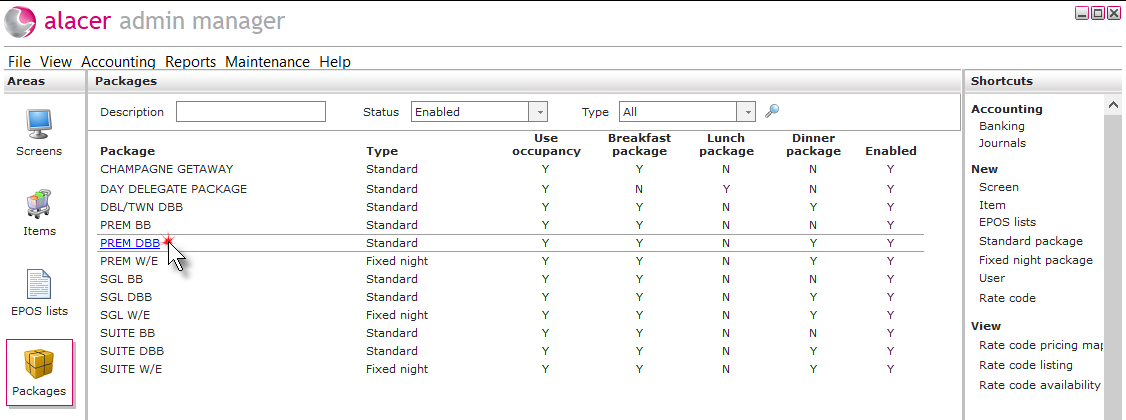
3. Click on the Items menu to select the allowance group.
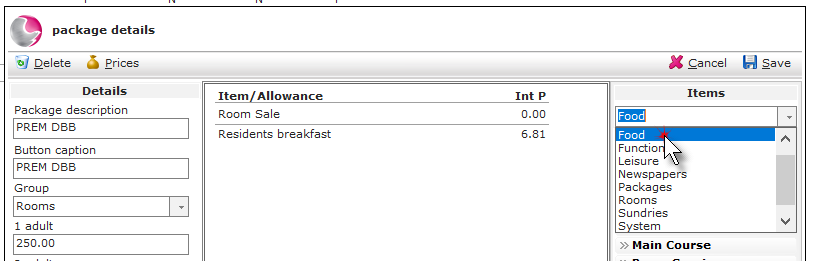
4. Click on the Allowance sub group.
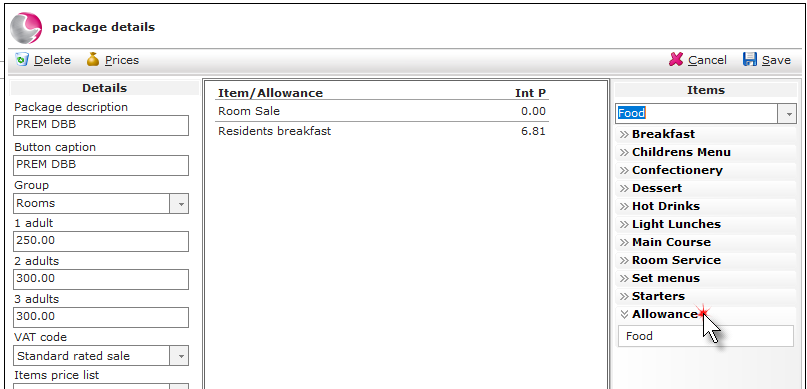
5. Left click, hold and drag the the allowance into the middle of the form and release the mouse button.
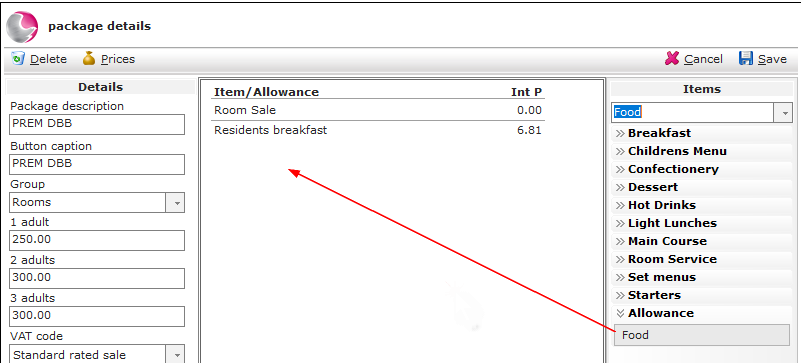
6. Complete the allowance form.
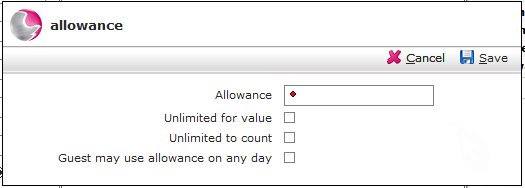
Allowance: Enter the allowance amount excluding VAT. The total package price includes VAT meaning the elements included in the package need to be priced without VAT.
Unlimited for value: When ticked the allowance amount is used for future forecasting purposes, based on the average spend of guests using the allowance. When the allowance amount has been reached, further charges will be absorbed into the package and not charged to the guests tab.
Unlimited to count: When ticked the allowance amount is used for future forecasting purposes, based on the average count of items used by guests using the allowance. When the allowance amount has been reached, further item charges will be absorbed into the package and not charged to the guests bill.
Guest may use allowance on any day: If the guest uses none or part of their allowance during their stay it will accumulate and can be used on another day within the reservation period.
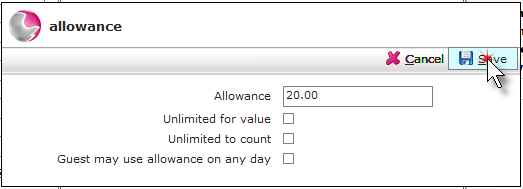
7. Click Save.
Creating allowance restrictions:
Once an allowance has been created it will absorb any item that is in the allowance group
For example: Food Allowance
Further restrictions named patterns can be created to only absorb a certain amount of items within an item subgroup up to the allowance amount.
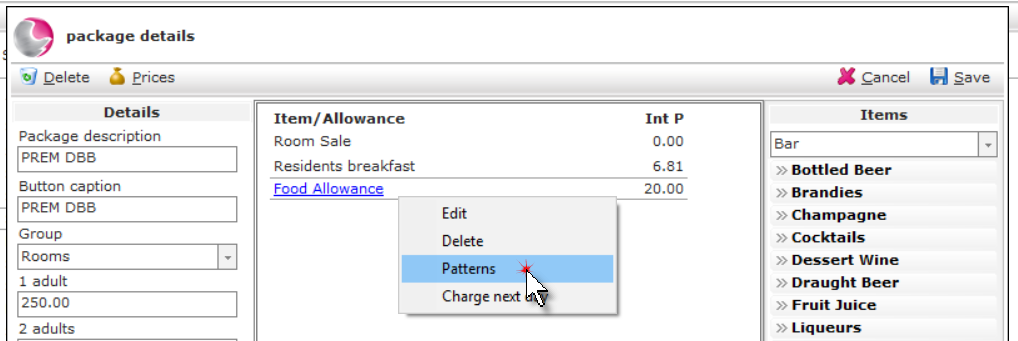
1. Right click on the allowance and select Patterns.
2. Click New.
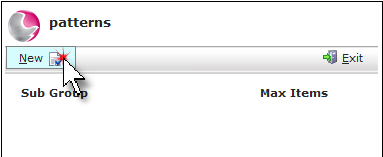
3. Select a subgroup from the menu.
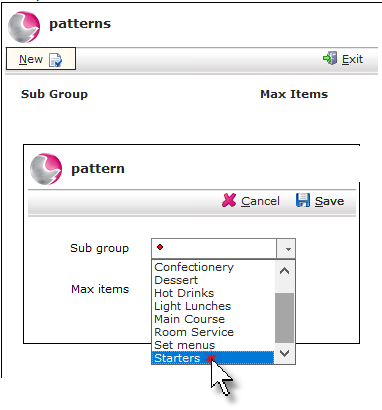
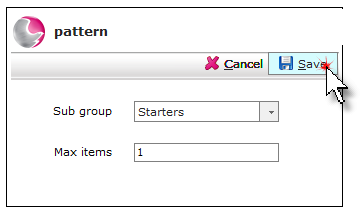
4. Enter the maximum numbers of items allowed from the selected subgroup. Click Save.
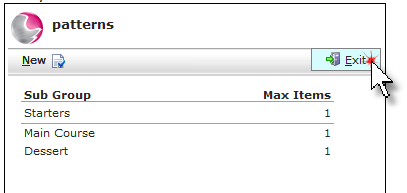
5. Once all the patterns have been added, click Exit.
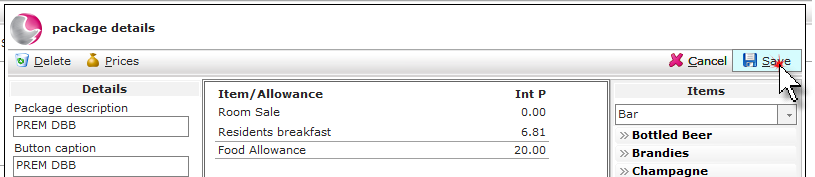
6. Click Save.
See next:
How to Create New Items
How to Create New Item Groups and Subgroups