
Every item / package has a price, and that price exists on a price list.
Multiple price lists can be attached to an item so that there is no need to create similarly named items in the system just to have different prices.
Packages can have prices on multiple price lists which means the package can be sold at different prices.
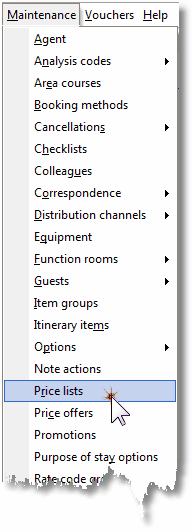
1. Select Price lists from the Maintenance menu.
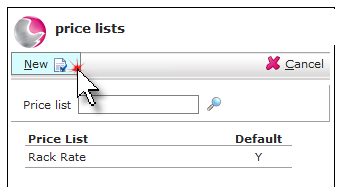
2. Click on New.
3. Complete the price list form.
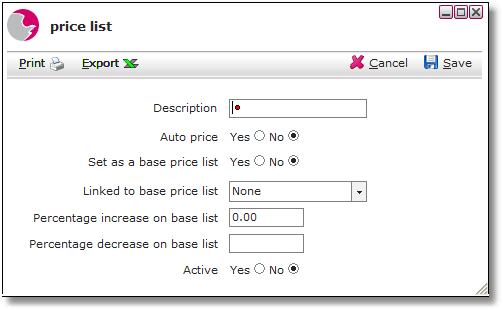
Description: Enter the name of the Price List
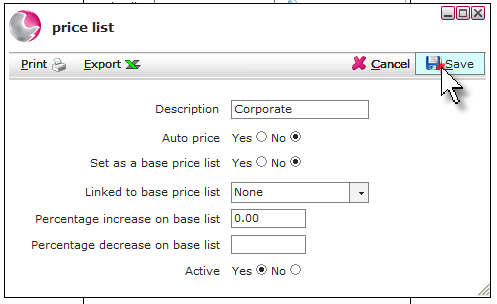
For example: Corporate.
Auto price: Click 'Yes' only if the price list is being used with Rates Manager.
Set as base price list: Click the 'Yes' checkbox if the new price list will be used as a base price list.
Linked to base price list: If the increase/decrease options are being used select the base price list that the new price will be linked to.
Percentage increase on base list: This option will increase the prices of the item/package linked to the base price list by the percentage amount entered.
Percentage decrease on base list: This option will decrease the prices of the item/package linked to the base price list by the percentage amount entered.
Active: Select Yes to make the price list active.
4. Click Save.
See next: How to Change an Item's Price
How to Create a Standard Package