
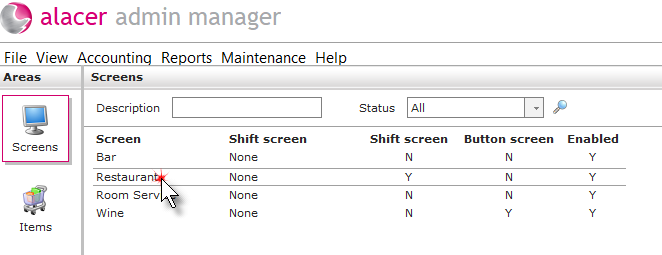
1. Click on the Screens icon in the Areas section.

2. Click on the screen.
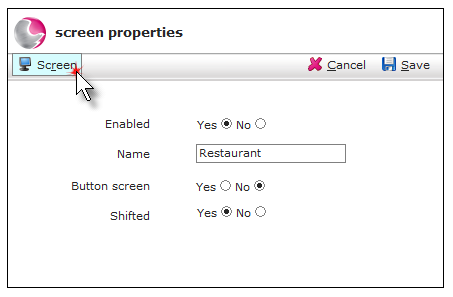
3. Click on Screen.
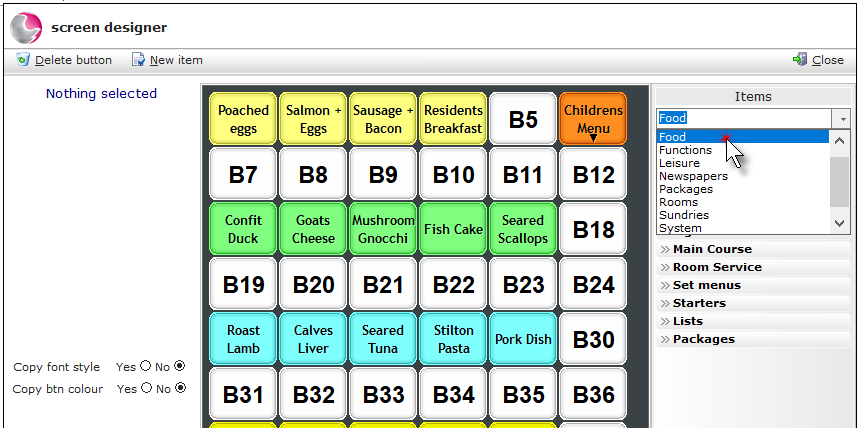
4. Click on the group that the item belongs to.
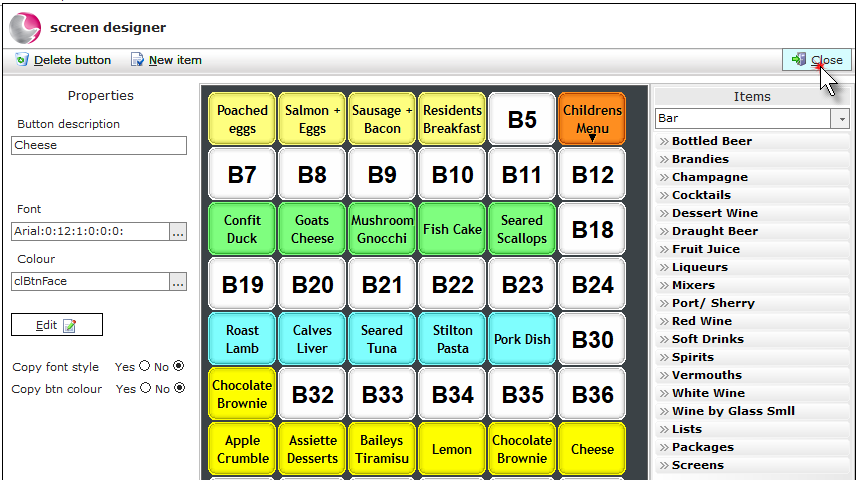
The white space indicates that a button can be placed in that position.
5. Click on the sub-group the items belong to.
Can't find it? See How to Create New Items
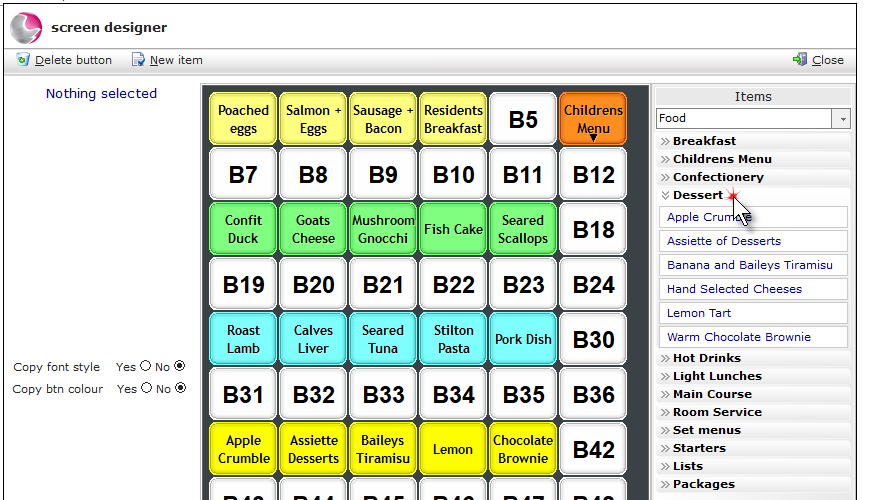
6. Left-click, hold and drag the item onto an available button space and release the mouse button. Repeat until all of the items have been added to the screen.
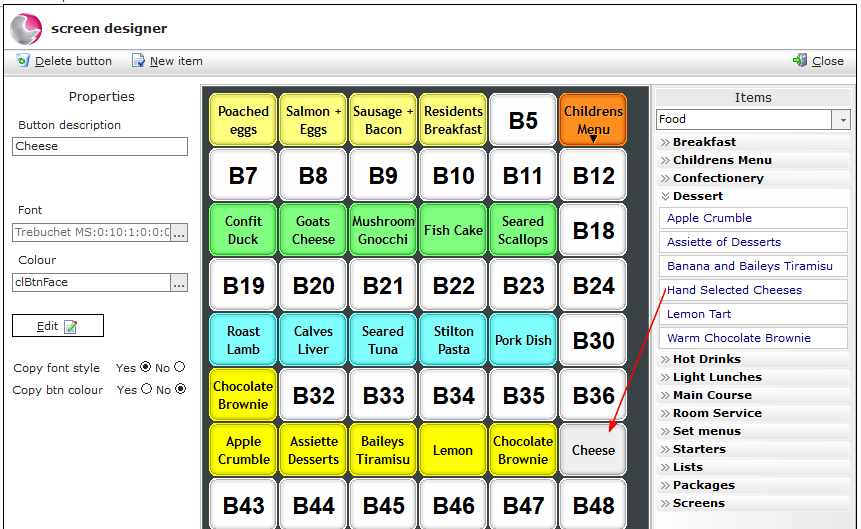
7. To change a button's font, first, select the button then click the three dots on the font option.
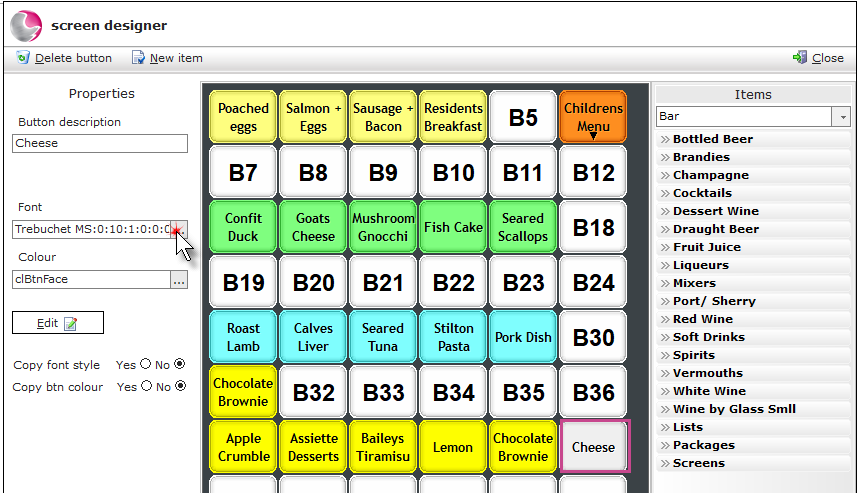
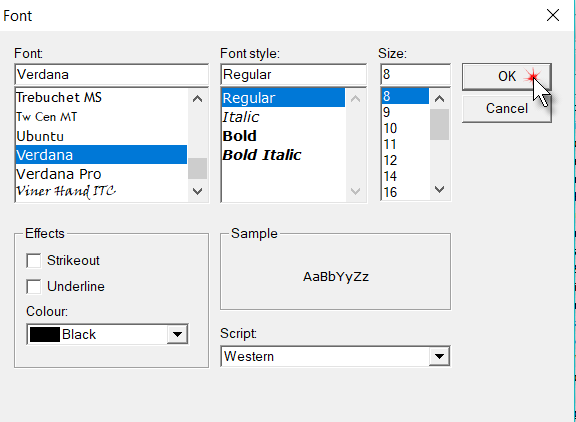
8. Choose the font and size. Click Ok.
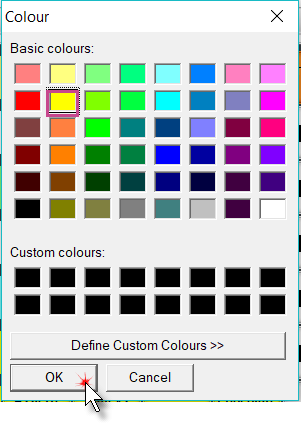
9. To change the colour of a button, first, select the button then click the three dots on the colour option.
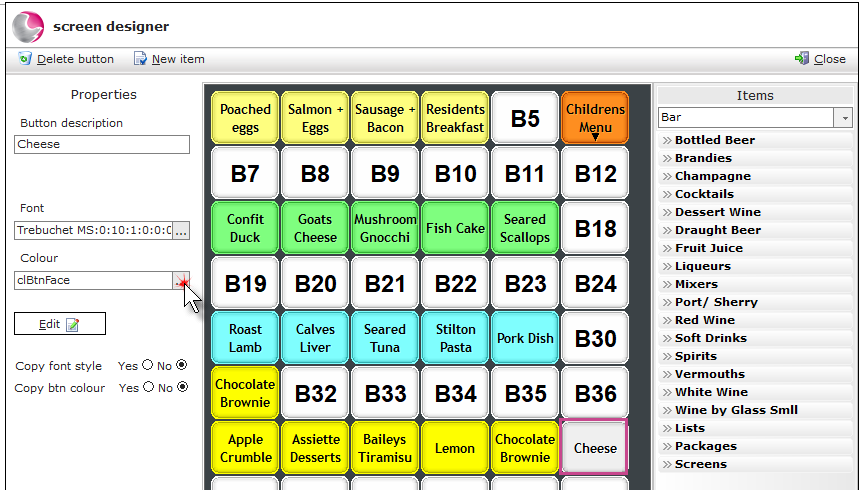
10. Choose a colour. Click Ok.
11. Click Close.
See next: How to Delete Buttons from an EPOS Screen
How to Create a New EPOS Screen