
EPOS Lists are collections of items which can be displayed on till screens using a single button, which when pressed shows all the items in a list view.
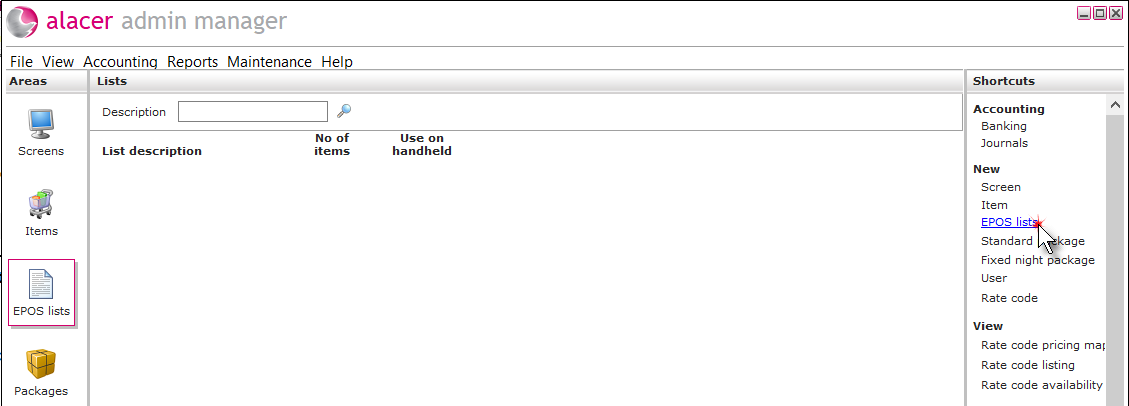
1. Click on the EPOS Lists icon in the Areas section.

2. Click EPOS lists under the heading of New in the Shortcuts Menu.
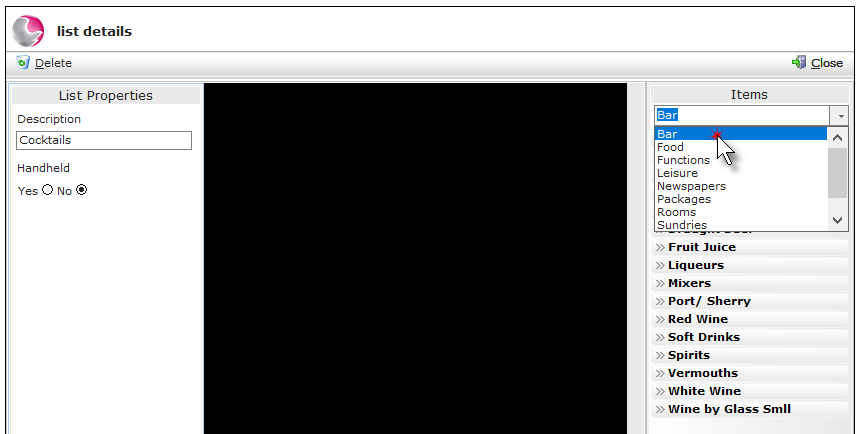
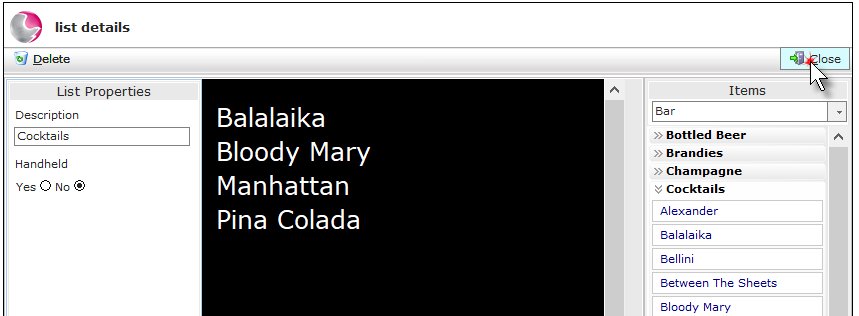
3. Enter the name of the list in the Description field, then select the group that the items belong to.
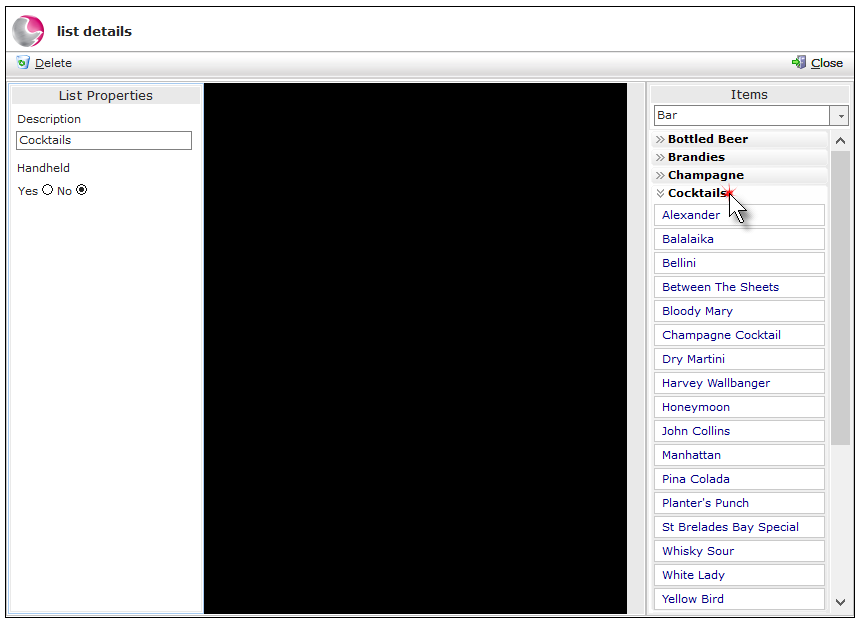
4. Click on the sub-group the items belong to.
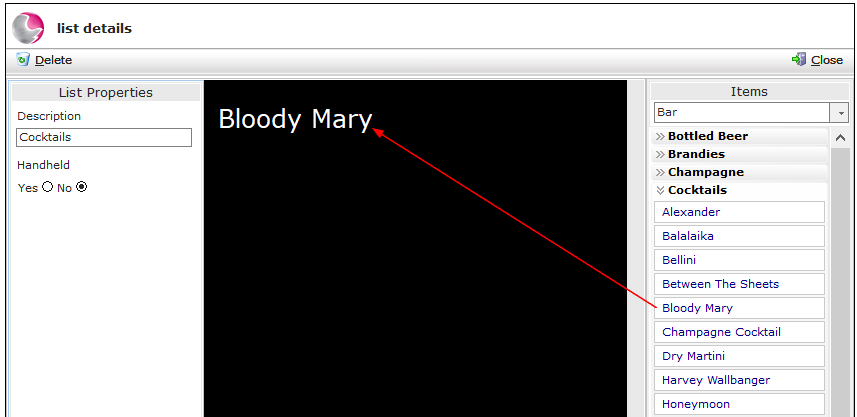
5. Left-click, hold and drag the item onto the black section of the form and release the mouse button. Repeat until all the items have been added to the list.
6. Click Close.
See next: How to Delete an EPOS List
How to Delete Items from EPOS Lists