
Schedule a rate code on or off so it can only be booked when you want it to be, for example Christmas rates that are only available in December.
In this article
- Step 1: Open the rate code schedule
- Step 2: Schedule the rate code on
- Step 3: Schedule the rate code off
Step 1: Open the rate code schedule
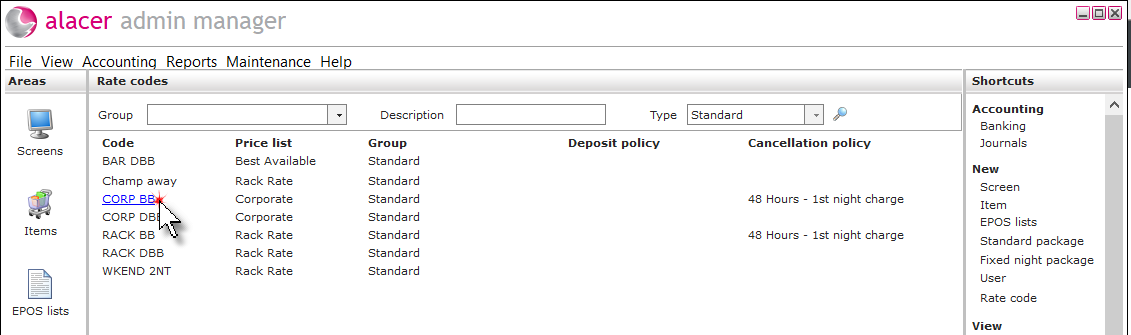
In the Areas section, click the Rate codes icon.

Click the rate code.
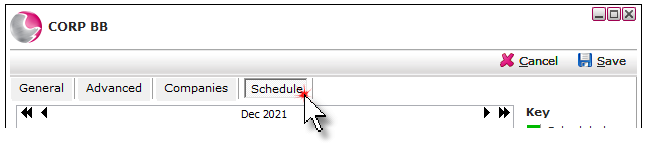
Click the Schedule page.
Step 2: Schedule the rate code on
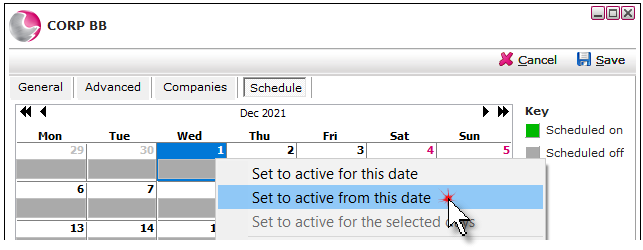
Click the date the rate code should be available from, then right-click and select an option. See Schedule on options below.
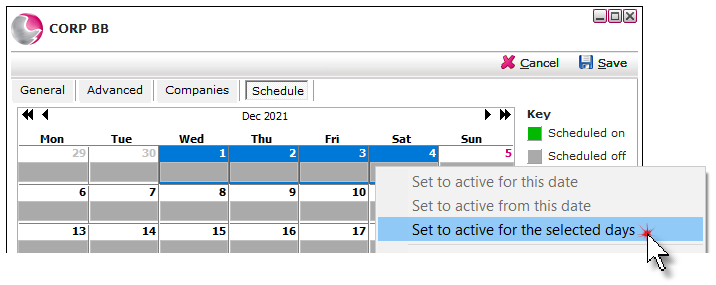
To schedule several days at once, select the days, right-click and select Set to active for the selected days.
Click Save.
Schedule on options
| Option | What it does |
|---|---|
| Set to active for this date | The rate code can be booked for that date only. |
| Set to active from this date | The rate code can be booked from that date onwards, until you schedule it off. |
| Set to active for the selected days | The rate code can be booked for the days you selected. |
Step 3: Schedule the rate code off
Click the date the rate code should stop being available from, then right-click and select an option. See Schedule off options below.
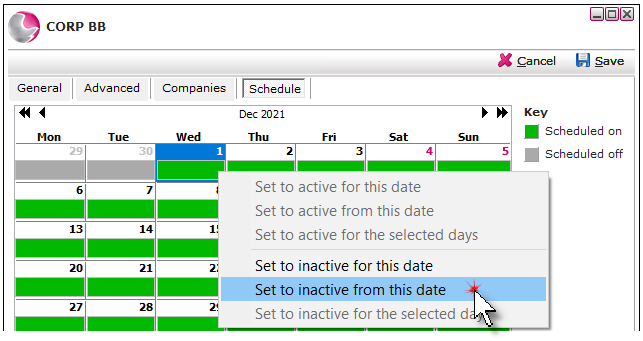
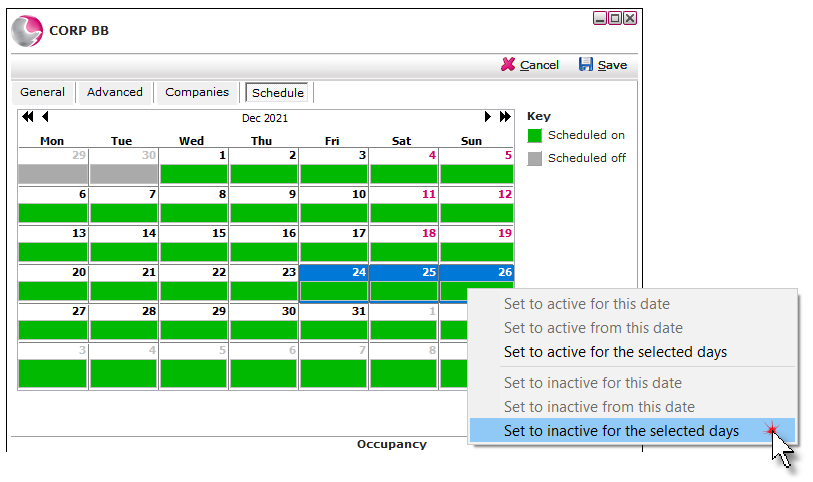
To schedule several days at once, select the days, right-click and select Set to inactive for the selected days.
Click Save.
Schedule off options
| Option | What it does |
|---|---|
| Set to inactive for this date | The rate code can't be booked for that date only. |
| Set to inactive from this date | The rate code can't be booked from that date onwards, until you schedule it on again. |
| Set to inactive for the selected days | The rate code can't be booked for the days you selected. |
What's next? To change the price of the rate code, see How to Change the Price of a Rate Code.
Related articles