
A rate code can be scheduled on or off so it is only available when required.
For example: Christmas rates only available in December
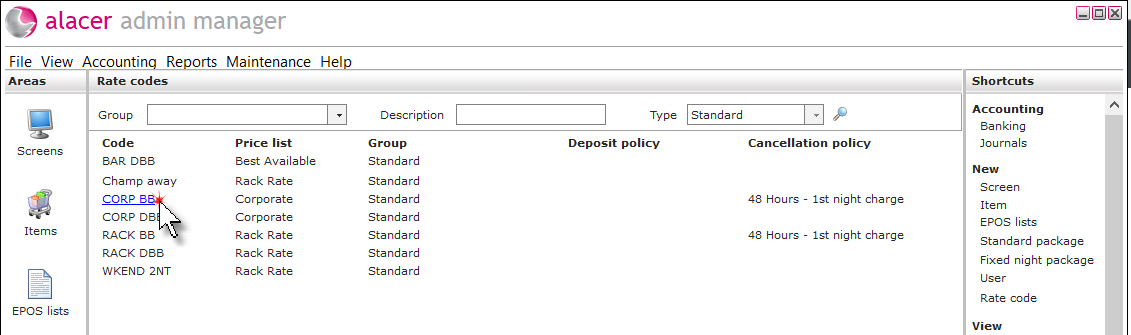
1. Click on the Rate codes icon in the Areas section of the screen.

2. Click on the rate code.
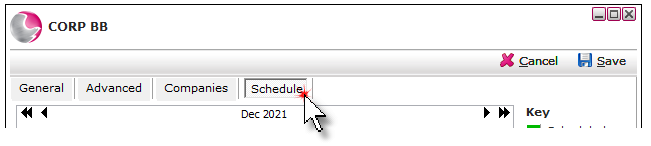
3. Click on the schedule page.
Schedule a rate on:
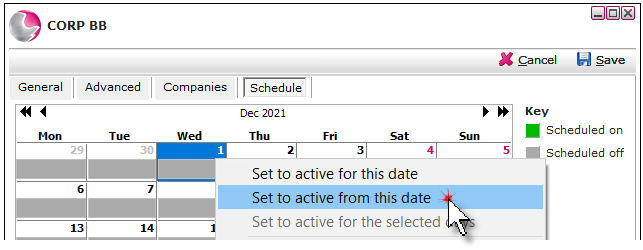
1. Click on the date the rate is available from, then right click and select one of the options.
- Set to active for this date: The rate will be available to book for that date.
- Set to active from this date: The rate will be available to book indefinitely or until it is scheduled off.
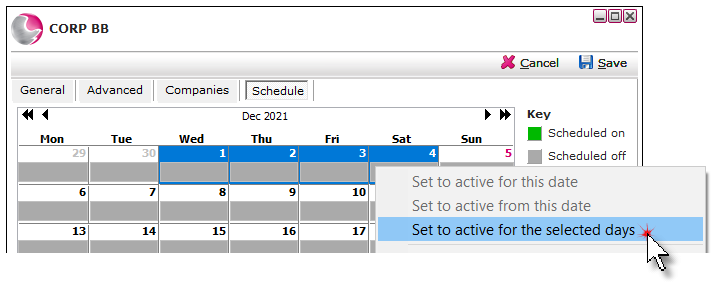
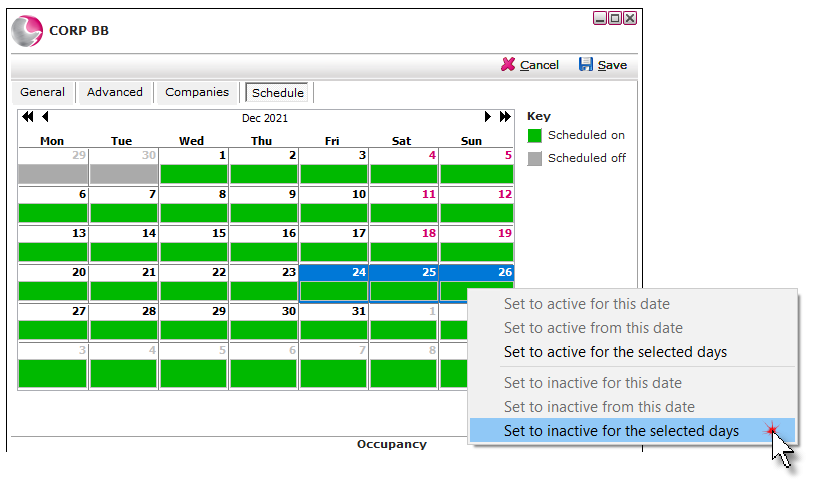
2. If multiple days have been selected the set to active for the selected days option can be selected.
Schedule a rate off:
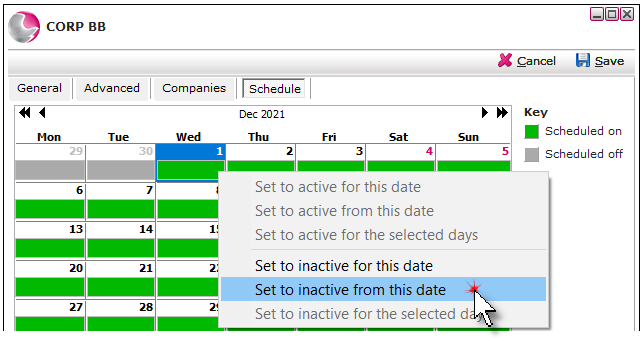
1. Click on the date the rate is available from, then right click and select one of the options.
- Set to inactive for this date: The rate will be unavailable to book for that date.
- Set to inactive from this date: The rate will be unavailable to book indefinitely or until it is scheduled on.
2. If multiple days have been selected the set to inactive for the selected days option can be selected.
Next see: How to Change the Price of a Rate code
How to Use Rate Code Pricing Map