
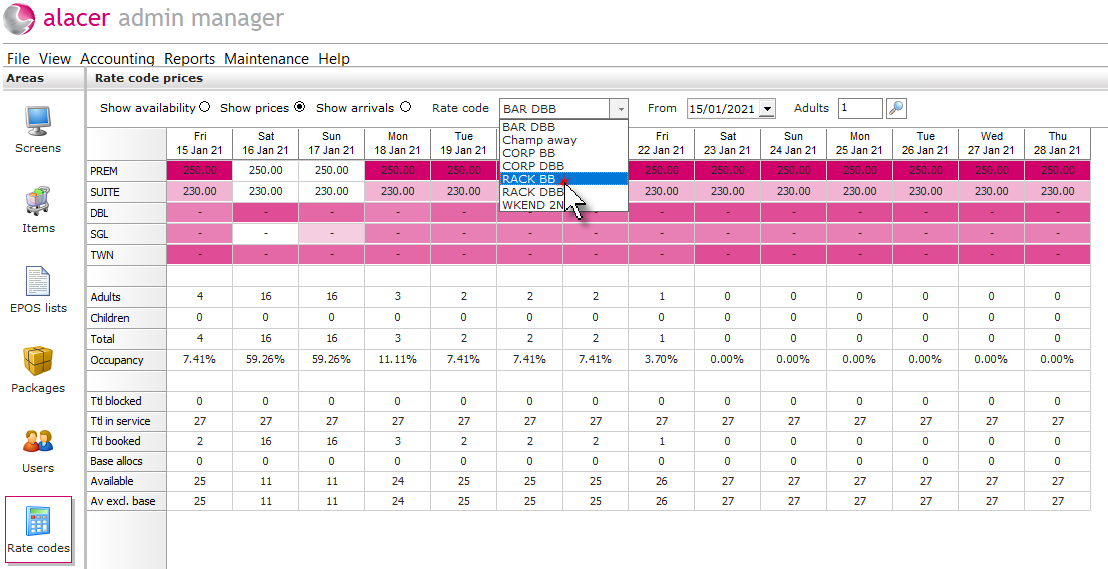
The prices option on the rate code pricing map will display the prices for 14 days from the date selected.
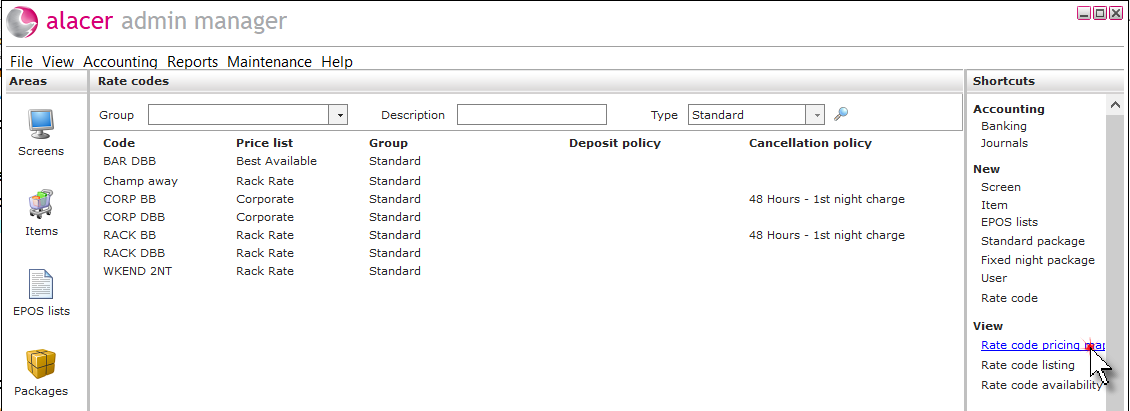
1. Click on the Rate codes icon in the Areas section of the screen.

2. Click on rate code pricing map under the heading of view.
3. Select the rate code from the menu.
4. Select a date for the price change.
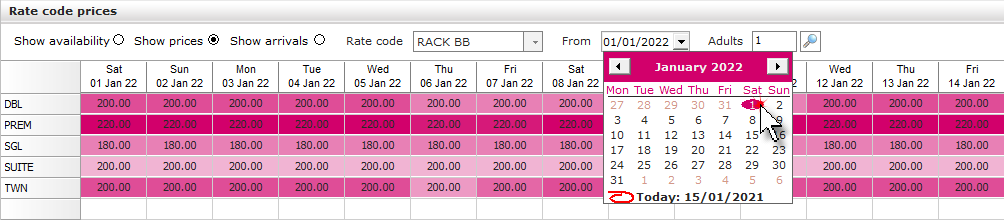
5. If the pricing is based on occupancy the adults field can be changed to display the price for the number of adults in the room.

6. Click on the date next to the required room type, then right click and select one of the options.
The price will need to be changed for each room type.
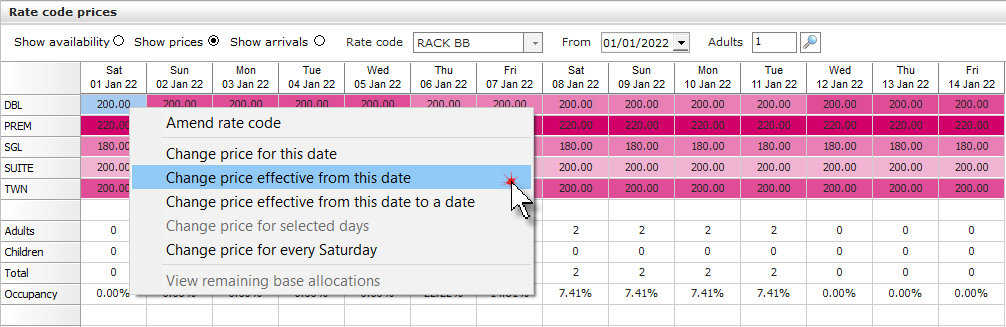
- Change price for this date: The price will only change for the date selected.
- Change price effective from this date: The prices will be updated indefinitely.
- Change price effective from this date to date: The prices will be updated for the date period selected.
- Change price for selected days: If multiple days have been selected the price will change for only those dates.
- Change price for every (day of the week): The price will be updated for day of the week selected.
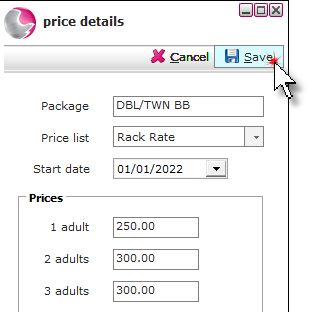
7. Select the price list (Usually Rack Rate) enter the new prices and click Save.
See next: How to Create a New Rate Code
How to Use the Rate Code Pricing Map