
1. Click the Rooms icon in the areas part of the screen.

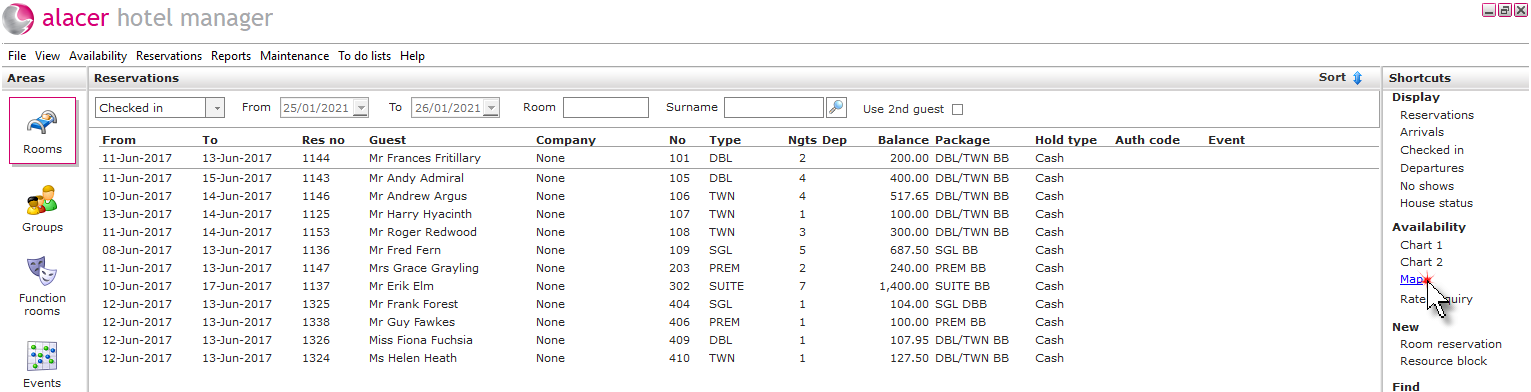
2. Click on Map from the Availability shortcut.
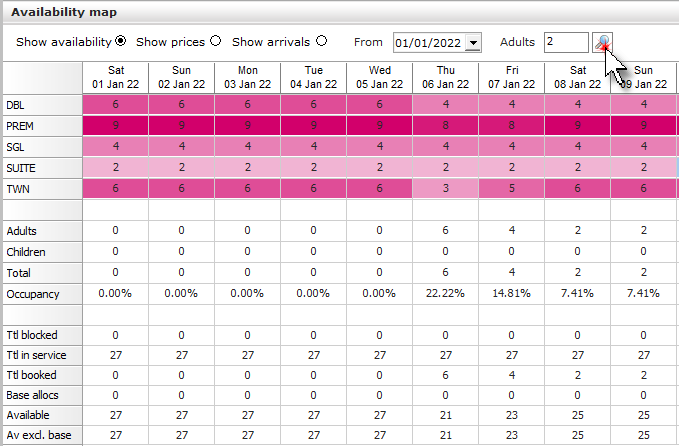
Show Availability:
This option displays the availability of each room type from the date selected. The different shades of pink represent the degrees of availability, the lighter the shade the less availability there is for that room type.
3. Click Show availability and select a date, then click the magnifying glass.
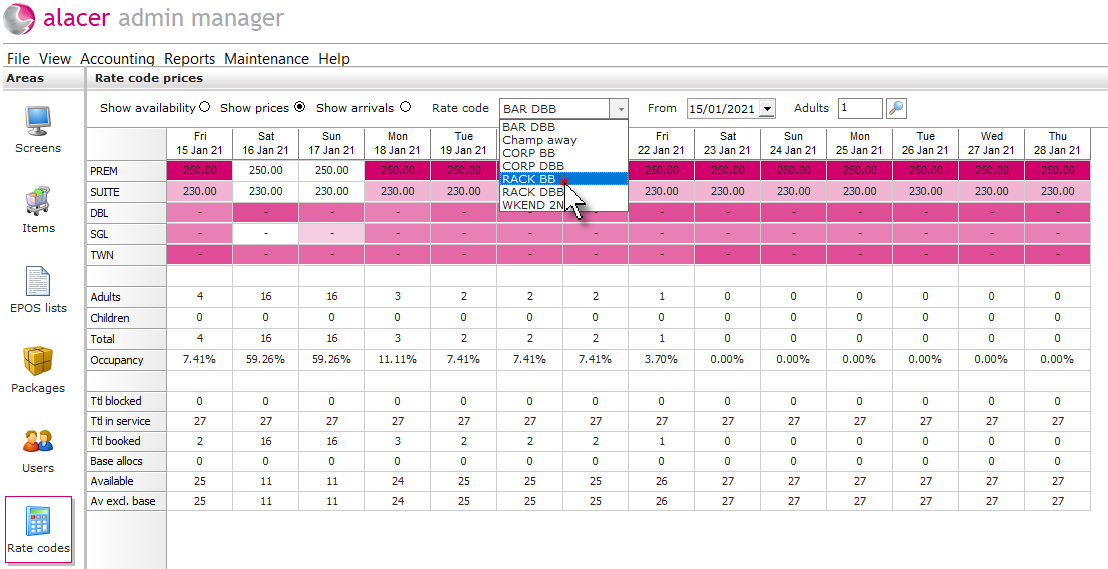
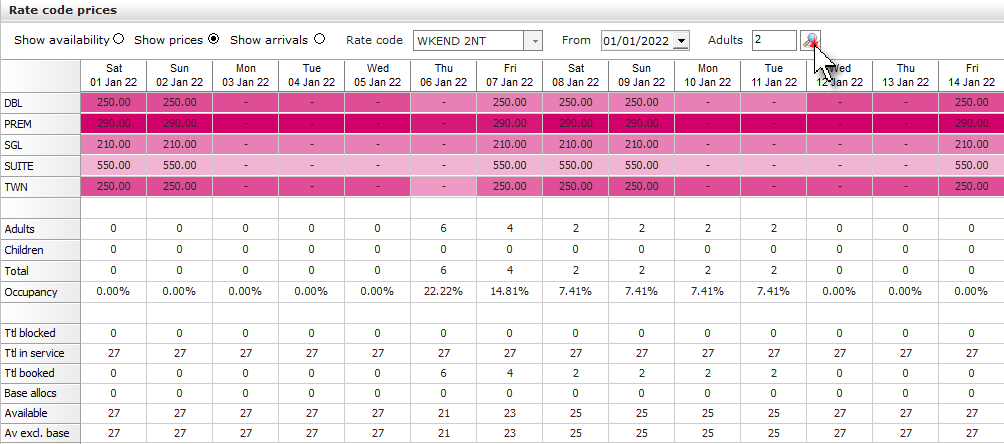
Show Prices:
Show prices can be used to view the current price of a rate code from the date selected and to change the price of rate codes.
4. Click show prices and select the rate code from the menu.
5. Select a date.
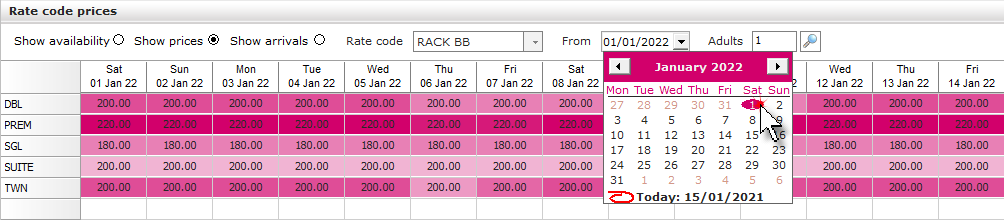
6. If the pricing is based on occupancy the adults field can be changed to display the price for the number of adults in the room.

Show Arrivals:
This option can be used to check if the rate code has been setup to allow arrivals on certain days.
7. Click show arrivals, choose a rate code from the menu and change the date. Click the magnifying glass.
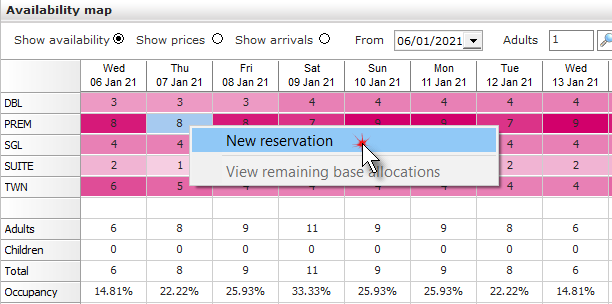
8. To begin the reservation process, right click or double click on an available date/room type and select New reservation.
See next:
How to Create a Bedroom Reservation