
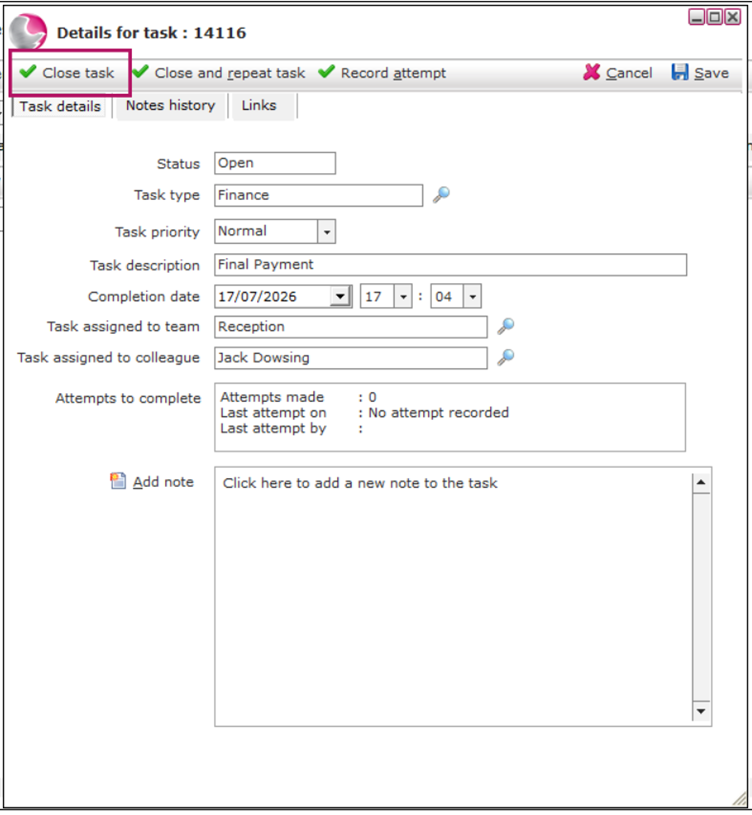
Once the task has been finished, you can mark it as complete.
- Open the task.
- Click Close.
The task will now be marked as completed.
Complete and Repeat a Task
Some tasks need to happen more than once.
For example, you may want to arrange a monthly catch-up meeting with a wedding couple before their big day.
Instead of creating the task again, you can repeat it.
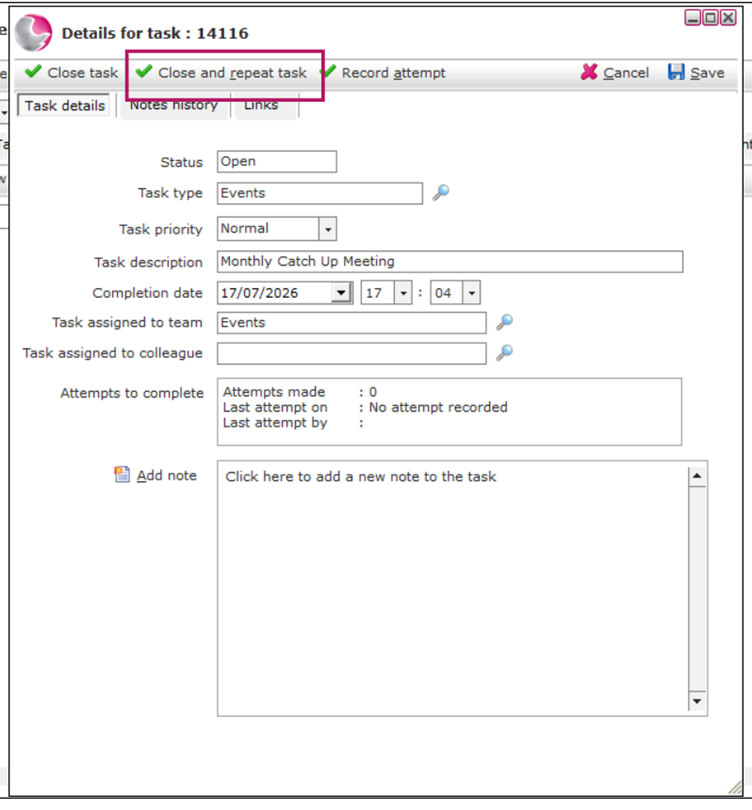
- Open the task.
- Click Close and Repeat.
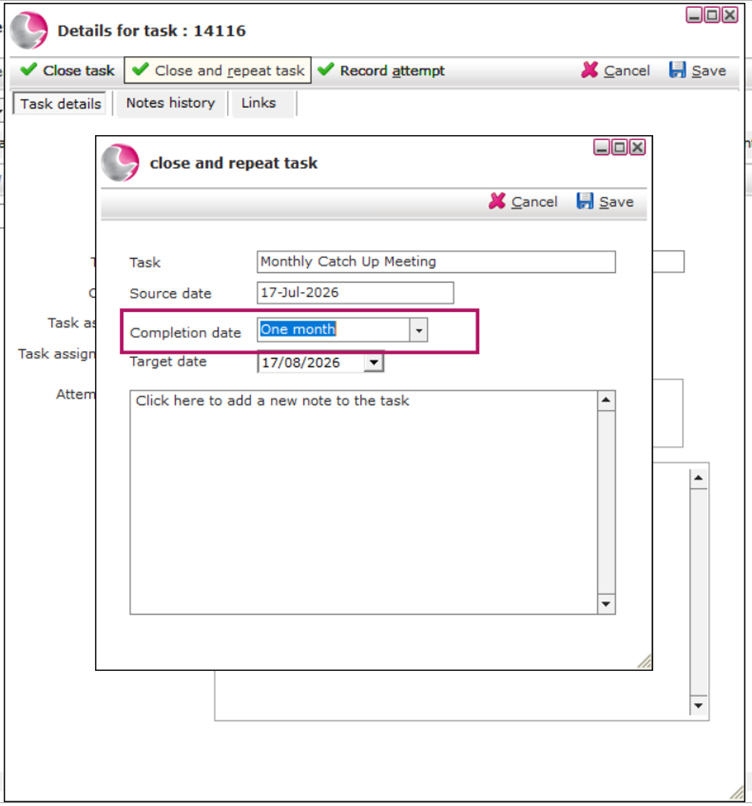
3. Select when the next task should be due.
For this example, choose One Month.
4. Click Save.
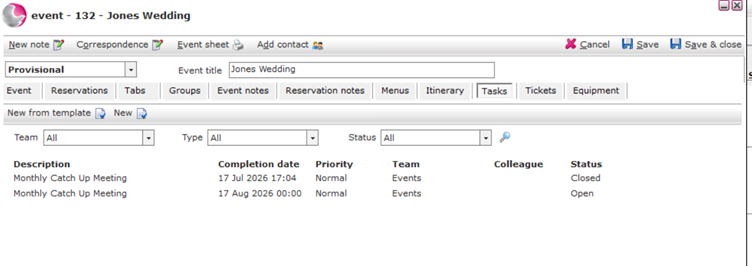
You will now see:
- The original task marked as Closed.
- A new task created with the next completion date.
Record an Attempt
Sometimes you may try to complete a task but be unable to finish it. Instead of leaving the task with no update, you can Record an Attempt to let your colleagues know what happened.
Example:
You called the client, but they are on annual leave and unavailable.
- Click Record Attempt.
- In the Notes section, enter the reason the task couldn't be completed.
Note: Client on annual leave. Returns on 20th August.
- Click Record Attempt to save your update.
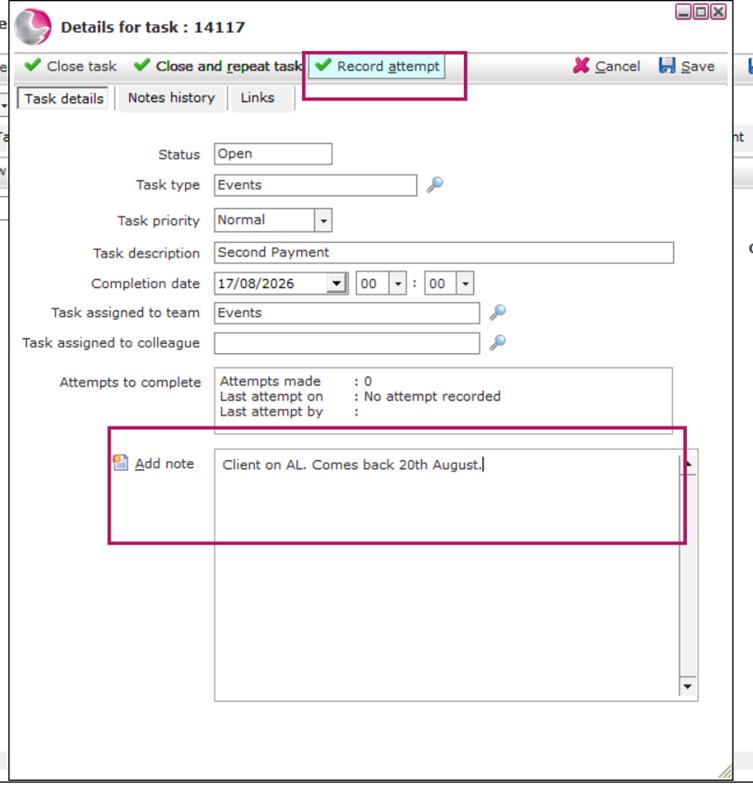
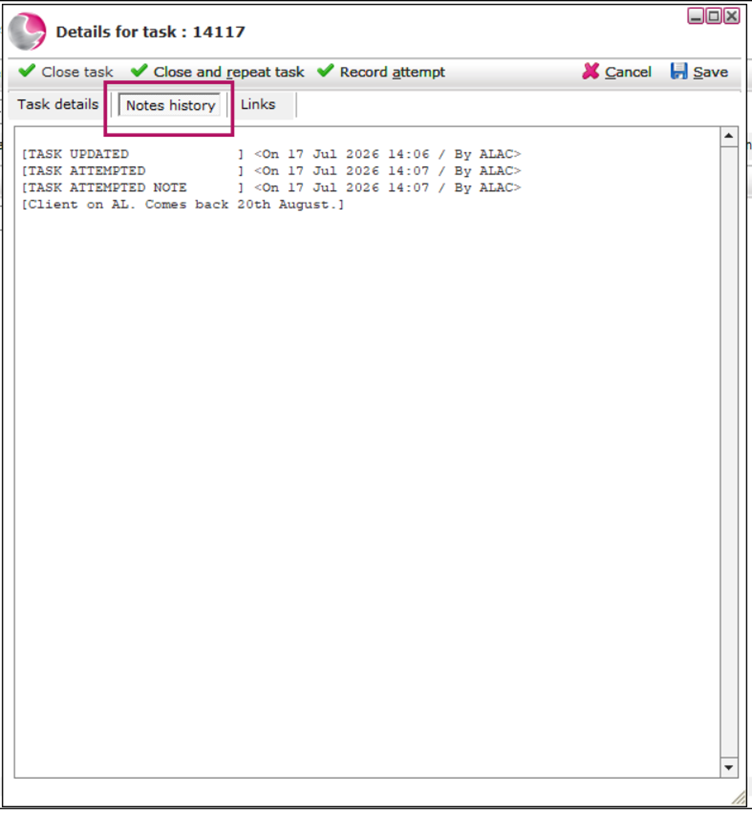
To see all notes and recorded attempts for the task:
- Open the task.
- Go to Notes History.
See Next: How to Print Task by Team Report