
As a best practice, your Cancellation Policy should match your Deposit Policy.
For example, if you charge a £10 deposit per person, your cancellation policy should also charge £10 per person. This ensures that any deposit already paid can be retained if the booking is cancelled within the cancellation period or results in a no-show.
If you don't use a Deposit Policy, you can still require card details for zero balance reservations in the Experience settings.
However, please note that if a cancellation charge needs to be taken, the card may be declined if it has been blocked, expired, or does not have sufficient funds.
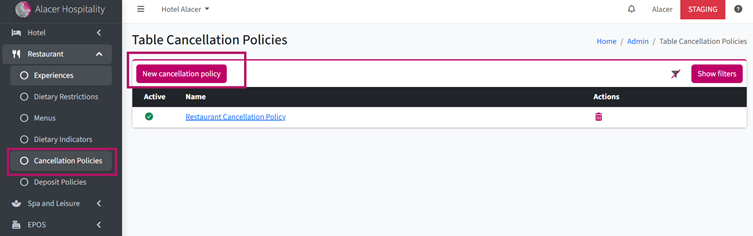
1. Go to Alacer Hospitality → Restaurant → Cancellation Policies and click New Cancellation Policy.
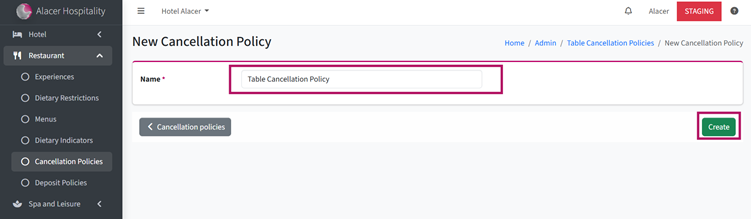
2. Enter a Policy Name and click Create.
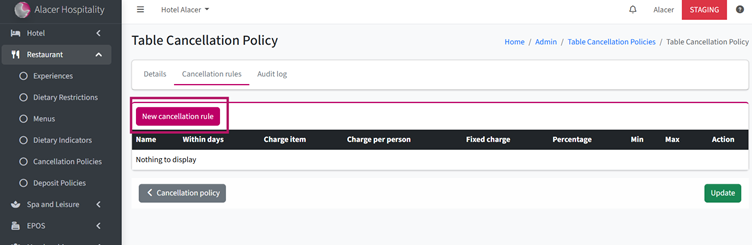
3. Click New Cancellation Rule.
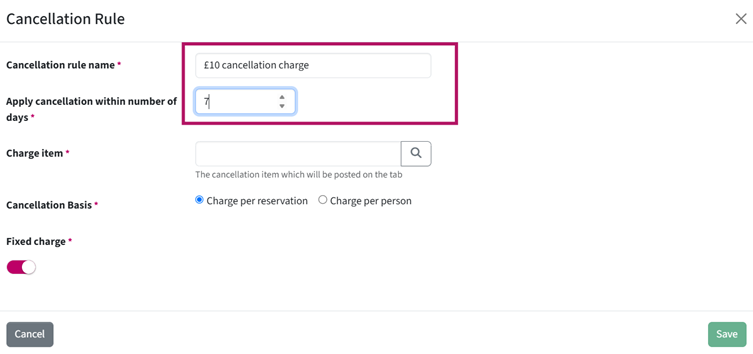
4. Enter a Rule Name.
5. Set when the cancellation rule should apply.
- Enter 999 if you want the cancellation policy to apply to all cancelled reservations, regardless of how far in advance they are cancelled.
- Enter 7 if you only want the charge to apply to reservations cancelled 7 days or less before the reservation date, including no-shows and so on.
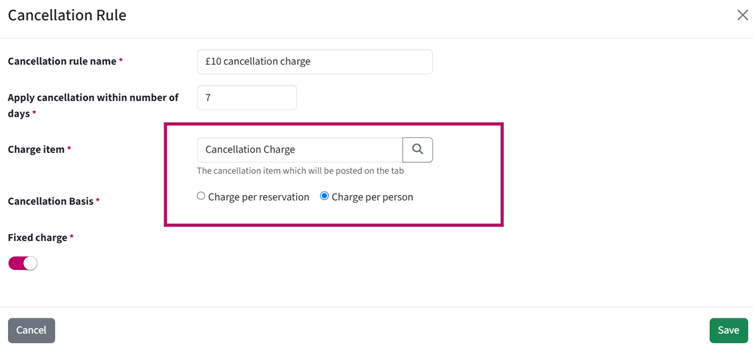
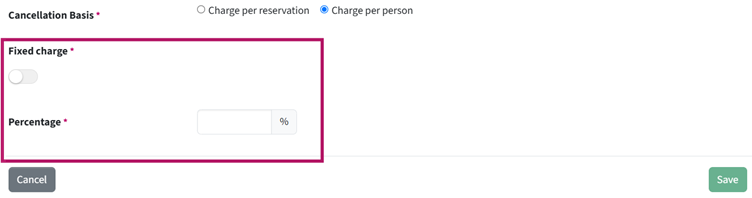
6. Choose how you would like to charge the cancellation fee:
- Fixed Charge – Charge a fixed amount per person or per reservation.
Note: The Cancellation Charge Item must have a price set in Admin Manager.
See How to Change an Item Price - Percentage – Turn the Fixed Charge toggle Off and enter the percentage you would like to charge.
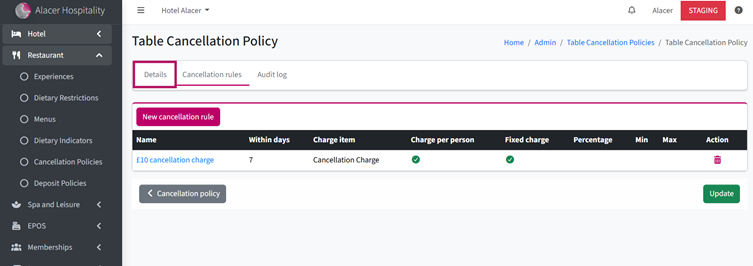
You can create multiple rules for the same Cancellation Policy
7. Open the Details tab.
8. Turn the Active toggle On, add a description to help your team identify the policy, and click Update.
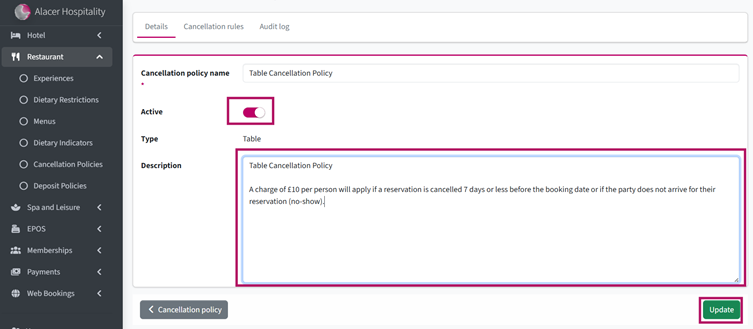
Your cancellation policy is now active and available to select in the Experience settings.
See next: How to Create a Restaurant Deposit Policy