
A Package is a collection of items that are sold together.
For example: a Package could be a nights stay with breakfast and dinner included.
Instead of making a reservation for the room and a separate sale for the breakfast and evening meal, a package can be created which includes everything and will be sold as one transaction during the reservation process.
A Standard Package will be made up of the same collection of items and is repeated on every night of the guest's stay. If the package price is different for each room type, a package will need to be created for each room type to reflect the prices.
A Standard Package that costs £250 per night could be made up of the following:
- A room sale
- 1 Breakfast per guest
- 1 Dinner allowance per guest
- Create a new standard package:
- Set an item to charge the next day:
- Add Price to the Internal Price List
Create a new standard package:
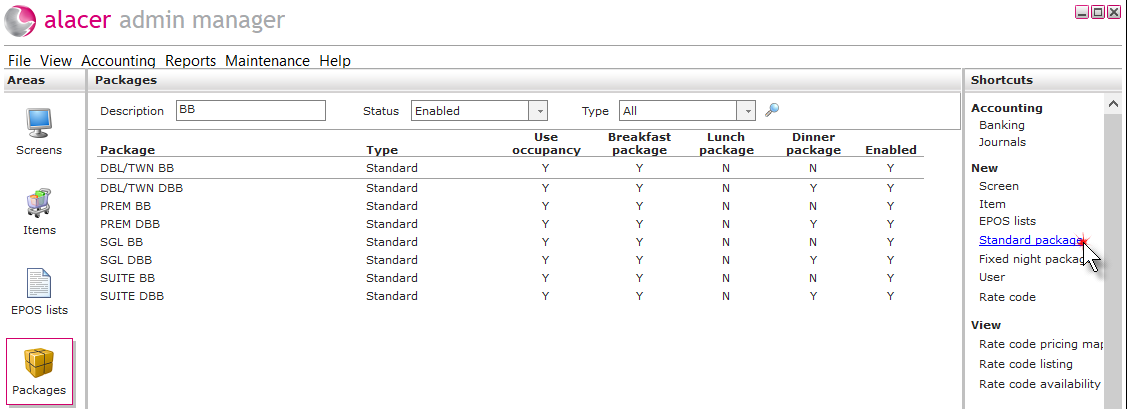
1. Click on the Package icon in the Areas section on the screen.

2. Click Standard package under the heading of New in the Shortcuts menu.
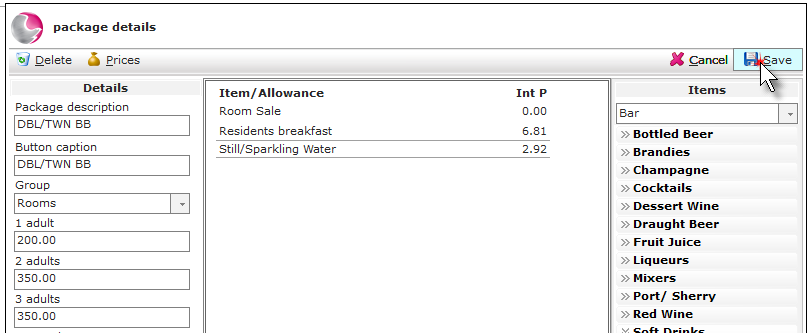
3. Complete the package details form, fields marked with a red dot are mandatory.
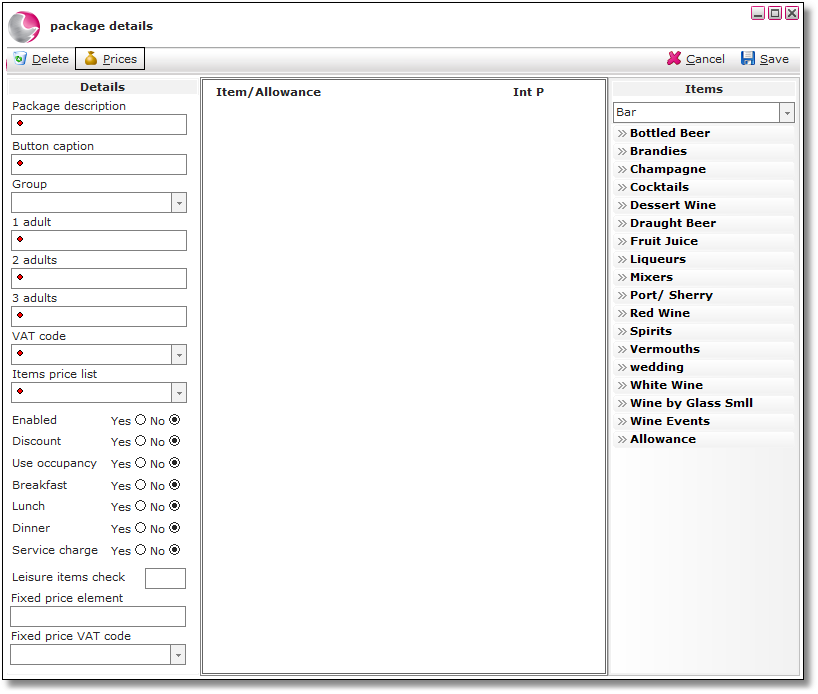
Package Description: Enter the package name.
Button Caption: The package name is automatically copied into this field. If packages are used on an EPOS screen, this is the button description that will be displayed.
Group: Select one of the options that relate to the package.
1 Adult: Enter the standard price for single occupancy.
2 Adults: Enter the standard price for double occupancy.
3 Adults: Enter the standard price for 3 adults.
VAT Code: Select the correct VAT code.
Items Price List: Select a price list. Usually the internal price list is used for packages as the package price includes VAT and items included in the package need to be priced without VAT.
Enabled: Click 'Yes' to enable the package to be used. Click 'No' to disable the package.
Discount: Click 'Yes' or 'No'. Discounts only apply to packages sold on EPOS.
Use Occupancy: Click 'Yes' to apply charges based on the number of adults i.e. Breakfast.
Click 'No' for a fixed price package regardless of the number of adults.
Breakfast: Click 'Yes' if the package includes breakfast and should display on the breakfast report.
Lunch: Click 'Yes' if the package includes lunch.
Dinner: Click 'Yes' if the package includes dinner.
Service Charge: Click 'Yes' if service charge is to be applied. Service charge only applies to packages sold on EPOS.
Leisure Items Check: If the package consists of leisure elements, enter the number of treatments a guest can book on this package.
Fixed Price Element: If the package contains an item that has a different VAT code to the other items, enter the total price of the item.
Fixed Price VAT Code: Select the VAT code for the fixed price item.
4. Click on the Items menu to select the group the item belongs to.
The first item added to the package (the victim line) is usually priced as £0.00 and is allocated the remaining revenue from the package price after all other item charges have been allocated and allowances have been spent.
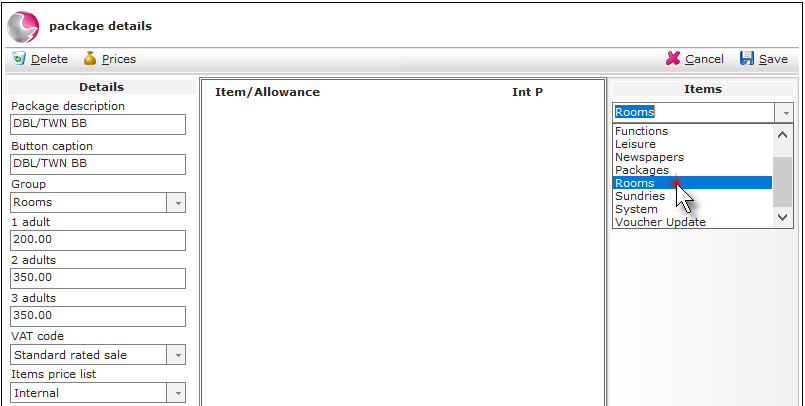
5. Select the sub group the items belongs to.
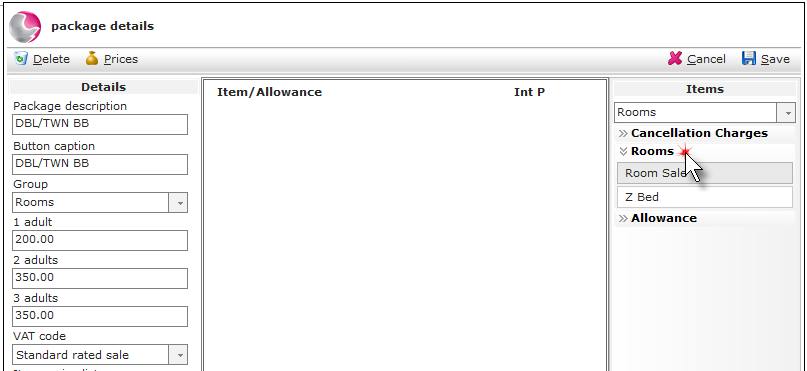
6. Left click and hold and drag the item into the blank space, then release the mouse button.
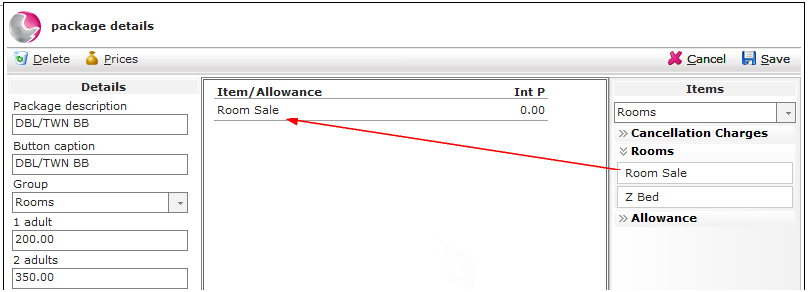
7. Repeat until all of the required items have been added to the package.
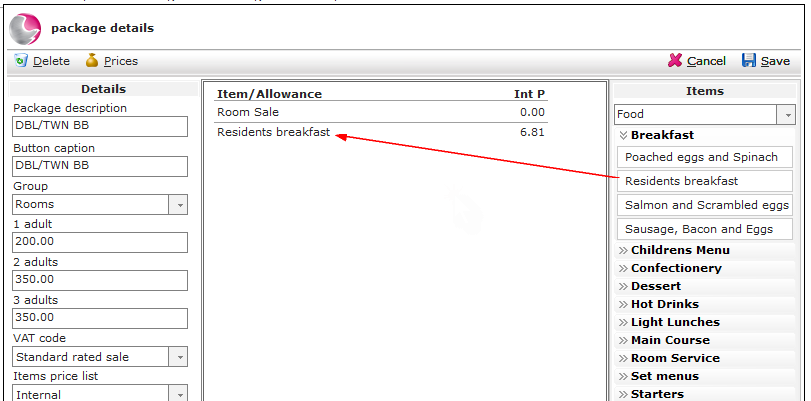
Set an item to charge the next day:
This option can be used if an item needs to be charged on the following day
For example: Breakfast.
1. Right click on the item and select Charge next day.
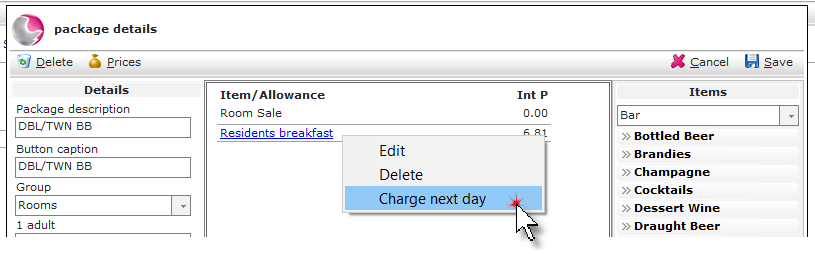
2. Select Yes and click Save.
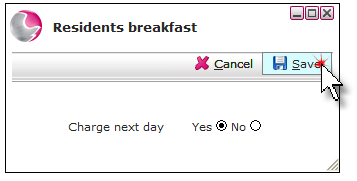
Add Price to the Internal Price List
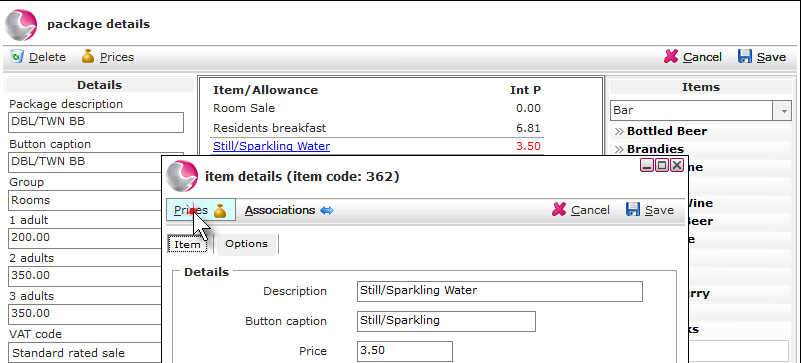
If the item dragged onto the package does not have a price on the Internal price list it will be displayed in red. A price can be added by left clicking on the item.
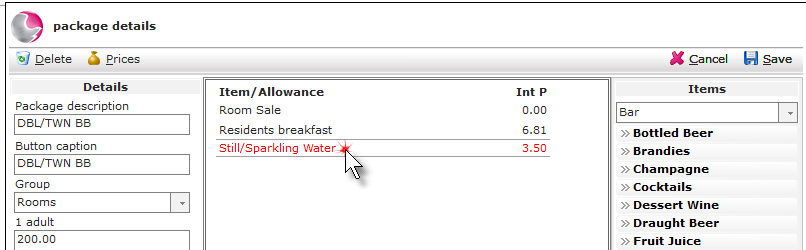
1. Click on prices.
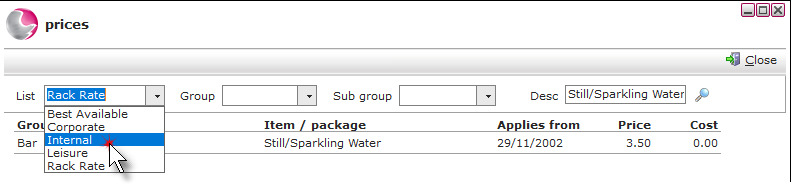
2. Change the price list to internal.
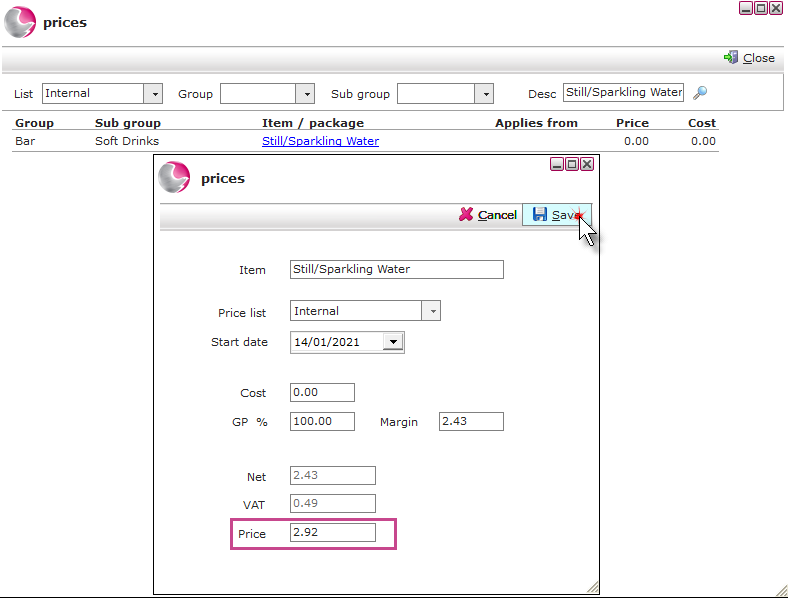
3. Click on the price list, enter the Net price in the price field and click Save.
4. When all of the items and allowances have been added. Click Save.
Don't know how? See How to Add Allowances to a Package
See next: How to Create Fixed Night Package
How to Disable and Delete Packages